The workbench
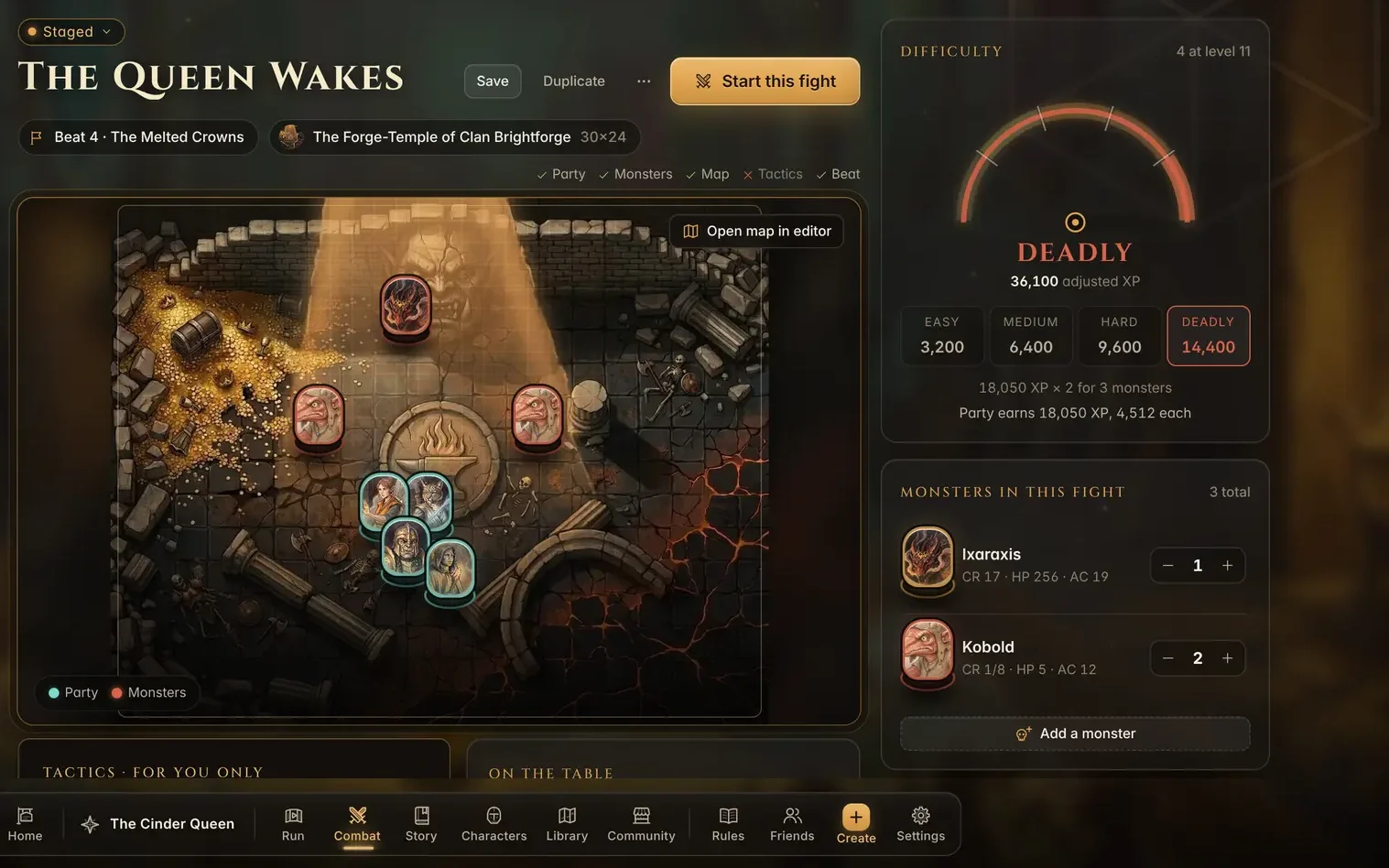
The workbench is the DM’s side of RollCall Tavern. Each screen sits on its own painted room, and a bar of glass along the bottom, the dock, takes you anywhere in one click. Learn the dock and you know the whole app.

The dock
The places, from left to right:
- Home. Every campaign you run and every one you play in. Start a new campaign from here.
- Your campaign. The campaign’s name sits in the dock. Press it for the front page: the party, the story so far, open threads and Run tonight’s session. A green dot means a player is connected.
- Run. Tonight’s session: the beat you are on, its read-aloud, the people in the scene and the Players’ screen.
- Combat. The encounter builder, and the fight itself once one starts.
- Story. Your arcs and their beats.
- Characters. The party, NPCs, monsters and companions, each with a full sheet.
- Library. Maps, monsters, NPCs, spells and items for this campaign, plus the free rules catalog.
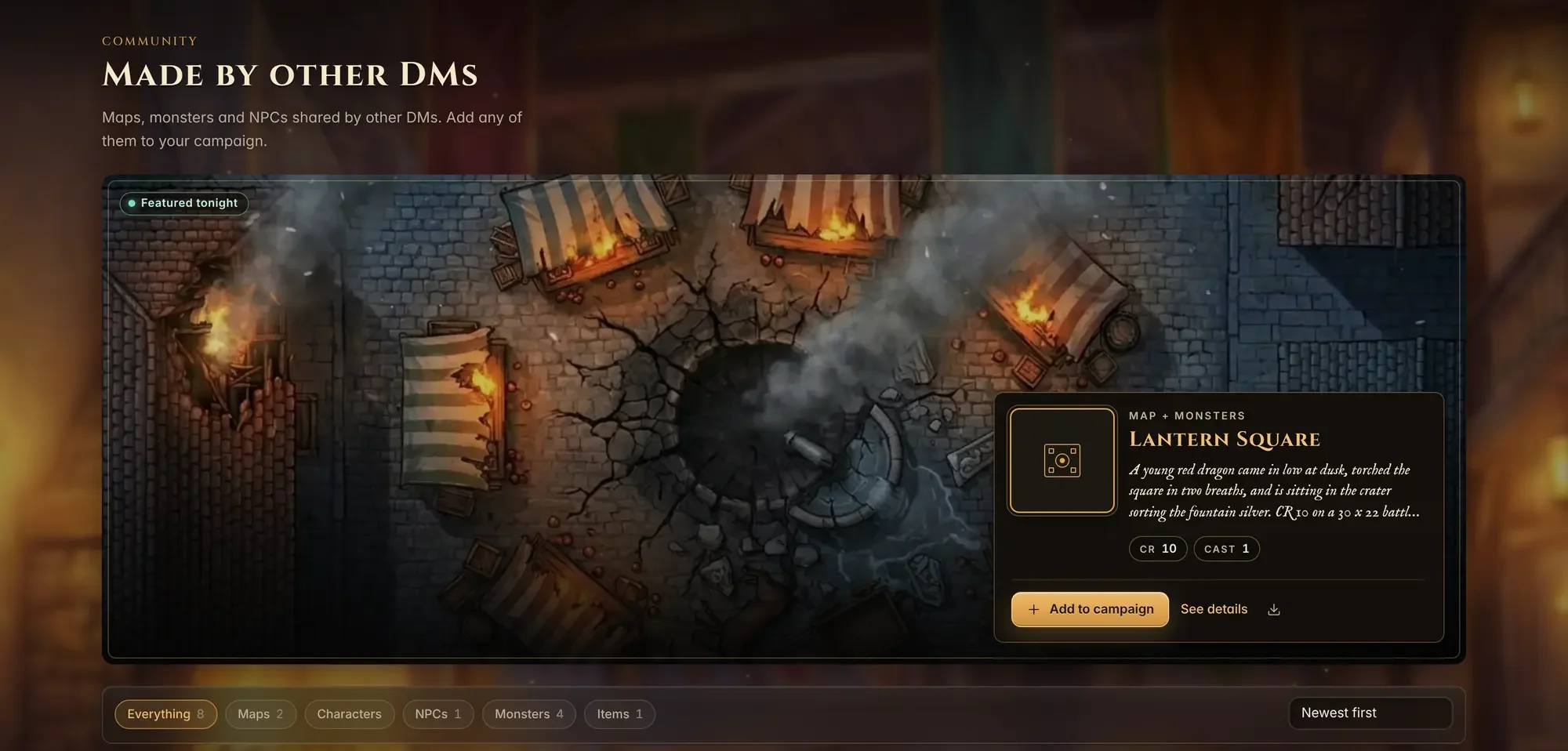
- Community. Maps, monsters and characters shared by other DMs, free to add to your campaign.
Then the tools:
- Rules. A rules quick reference that slides in beside whatever you are doing.
- Friends. Your friends, friend requests, and who is in this campaign. A gold badge counts anything waiting for you.
- Create. One menu for anything new: a character, NPC, monster, item, encounter, map or story arc, plus Generators for names and loot.
- Settings. Look and feel, combat options, your campaign’s details and backups.
Campaign screens wait until a campaign is open; until then they say Open a campaign first. During a fight, Combat glows and the faces of the players at the table join the dock. On a phone the dock becomes a tab bar with Run, Campaign (Combat while a fight is on), Story, Party and More, which holds everything else.
The top bar
Across the top: the campaign switcher (press the campaign’s name to jump to another), where you are, and Search or jump to. Press Cmd+K (or Ctrl+K) to find any character, NPC, monster, item, spell, encounter or map in this campaign, jump to a screen, or open a tool like the party rest. At the right, Simple and Advanced set how much each screen shows. Simple keeps the essentials; Advanced adds extra tools, such as Factions and the Timeline in Story and sorting and size filters for maps.
Home
Home shows Running, the campaigns you run, with the current one as the big card, and Playing, the campaigns where you are a player. Invitations to other people’s games appear at the top. The cards of campaigns you run have Open campaign and Invite.
Your campaign’s front page
The front page is where a session starts: Run tonight’s session, Log a session and a Prep checklist, the party with their hit points, the current arc drawn as a path with tonight’s beat lit, what is Coming up and the Open threads your players have not closed yet.
Story
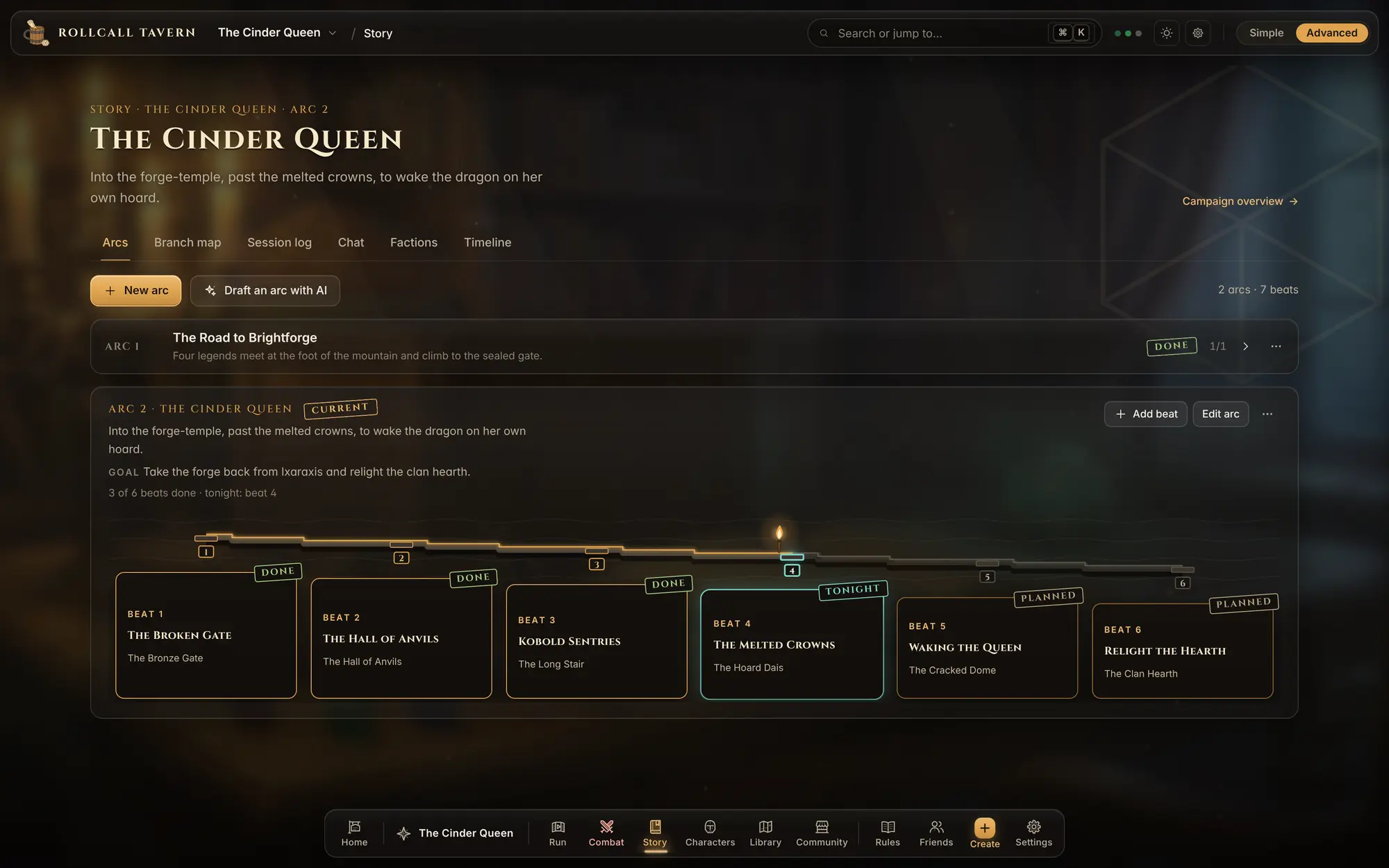
Story holds your Arcs, each a row of beats: the scenes you expect to play. Open a beat to read your notes, link the people and monsters in it, and press Make this tonight’s beat or Run this beat. Each beat carries its own read-aloud text for Run. The other tabs are the Branch map (how beats lead to each other when the party goes off the path), the Session log and Chat.
Characters
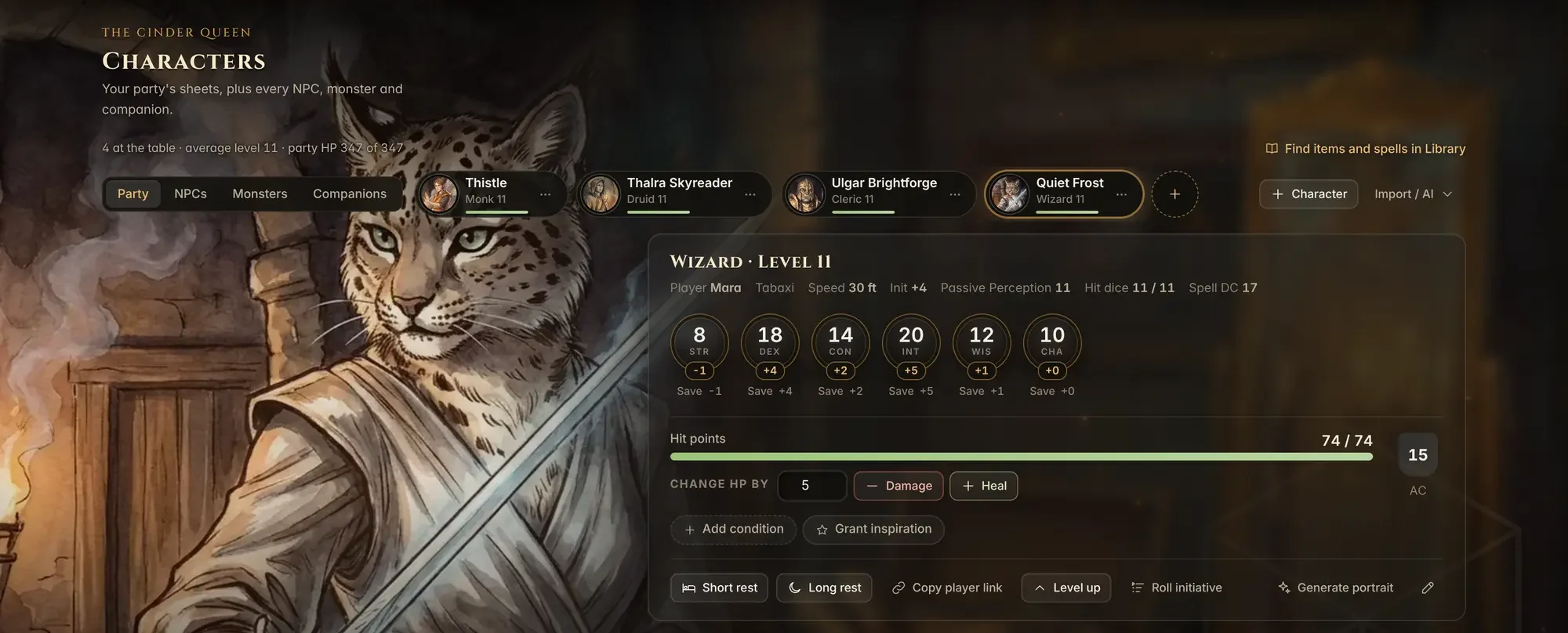
Tabs for Party, NPCs, Monsters and Companions. A hero opens as a full spread: portrait, abilities, hit points with Damage and Heal, conditions, rests, level up, spells, gear and skills. A monster opens as a dossier with its stat block, how dangerous it is for your party, tactics and loot.
Library
Everything reusable: Maps, Monsters, NPCs, Spells, Items and Companions. Each tab shows what is in this campaign, then the free rules catalog, so you can find an Owlbear or a Fireball and add it in one step. Maps live here too; see Maps and battle maps.
Combat: the encounter builder
With no fight running, Combat opens the encounter builder. Pick or add an encounter on the left (or start from Templates or a Random table), then set it up in the middle: the monsters, the map, which beat it belongs to, and your tactics notes. The difficulty dial shows how hard the fight is for your party as you add monsters. When it is ready, press Start this fight.
Community
The Community shelf collects maps, characters, NPCs, monsters and items that other DMs have shared. Filter by kind, open anything to see it up close, and press Add to campaign to drop your own copy into one of your campaigns. It is yours to rename, change and use.
Settings
Settings has sections for your Campaign (details, backups, export and import), Membership, Appearance (themes, accent color, fonts, text size, reduce motion), Behavior, Combat, Map, Content Packs and Data. The painted look is called New look under Appearance. It is on by default, and turning it off brings back the classic layout on this browser only.