Running a session
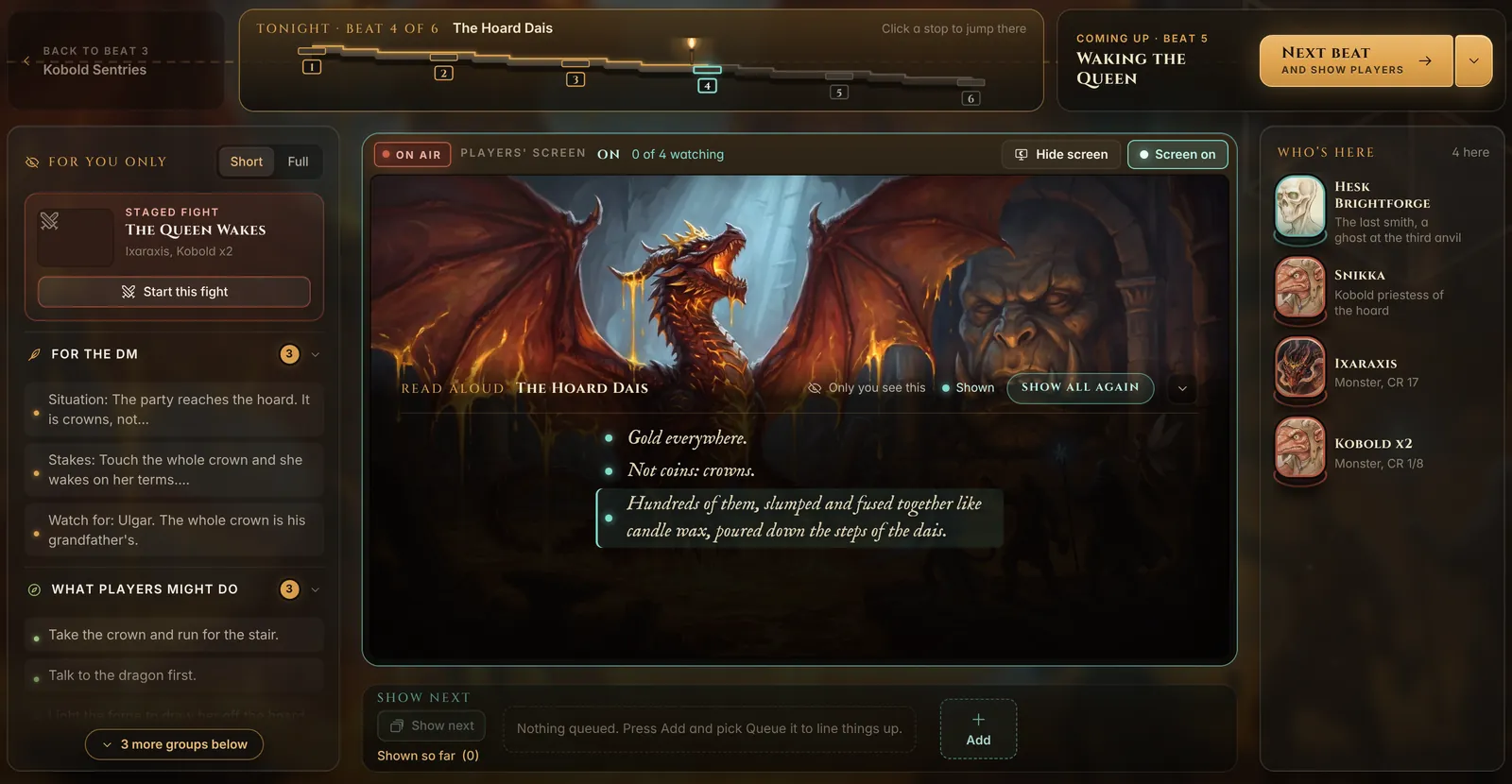
On game night you work from one screen, Run. It shows the beat you are on, your notes, the people in the scene and a live copy of what your players see. Open it from the dock, or press Run tonight’s session on the campaign’s front page.
The shape of Run
- The scene track across the top shows every beat in tonight’s arc with yours lit. Click a stop to jump there. Next beat moves the story on; while the Players’ screen is on it also shows the new beat to the players. Its arrow opens Where next, for when the party goes another way, and Move on without showing players.
- For you only, on the left, is never on a player’s screen: the fight staged for this beat, your notes for the DM, and what the players might do.
- The Players’ screen, in the middle, is exactly what the table sees.
- Who’s here, on the right, lists the NPCs and monsters in the scene. Open one for their sheet, what they want and lines they can say.
The row above holds Quick lines (things your NPCs can say), Campaign board (every beat, person and open thread, key J), Notes (jot down what just happened, key N), Chat with your players, and Layout to choose which columns you see.
The Players’ screen
Press Turn screen on (or P) and the light reads On air. From then on, whatever you put on it appears on every player’s phone or laptop. The count beside it tells you how many players are watching.
- Off: players follow the story view on their own.
- Hide screen: players see your campaign’s title card until you press Show screen again. Handy for a break, or before a reveal.
Read-aloud, line by line
Each beat’s read-aloud text sits inside the Players’ screen as a script. Dim lines are only on your screen. Click a line and it lights up as a caption on theirs, so you can reveal a description one sentence at a time while you read it out. Show all text sends the whole passage at once. You write the read-aloud on the beat, in Story.
Pictures, handouts, maps and music
Under the Players’ screen is Show next, a queue of things to show. Press Add and choose Show now to put something on the screen straight away, or Queue it to line it up for later. Then pick what it is:
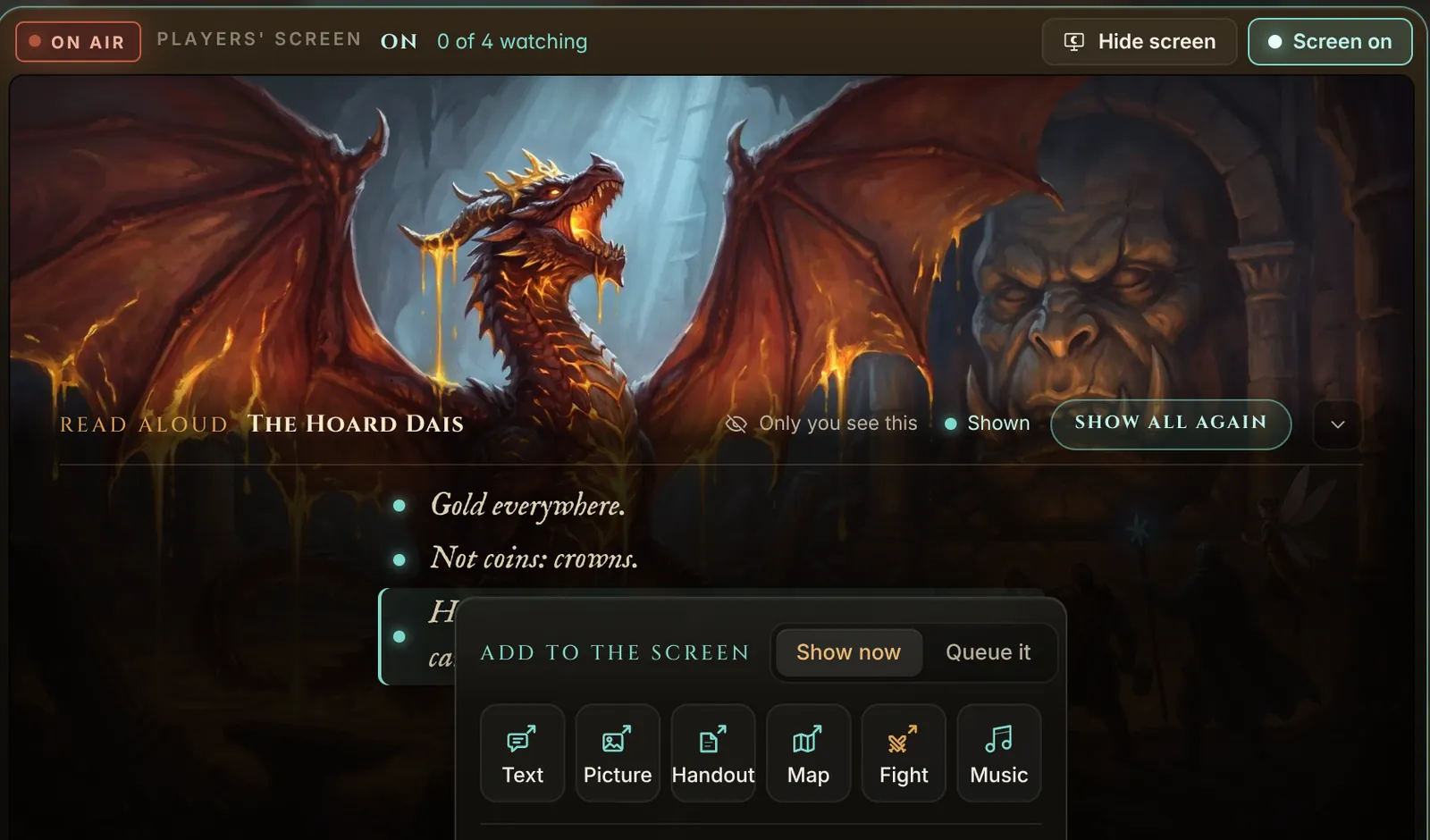
- Text. A line or a passage, shown as a caption on every screen.
- Picture. Any image: a portrait, a view, a monster reveal.
- Handout. A letter, a wanted poster, a page from a diary, with its words.
- Map. One of the campaign’s maps.
- Fight. A staged encounter, ready to start.
- Music. A track that plays on the players’ devices.
Show next plays the first thing in the queue. Drag items to reorder them. Shown so far keeps everything the players have seen this session, with Show again for each.
Starting a fight
When steel comes out, press Start this fight on the staged fight in For you only, play a queued Fight, or start it from Combat. The fight opens with a title card, and every player’s screen switches to the board.
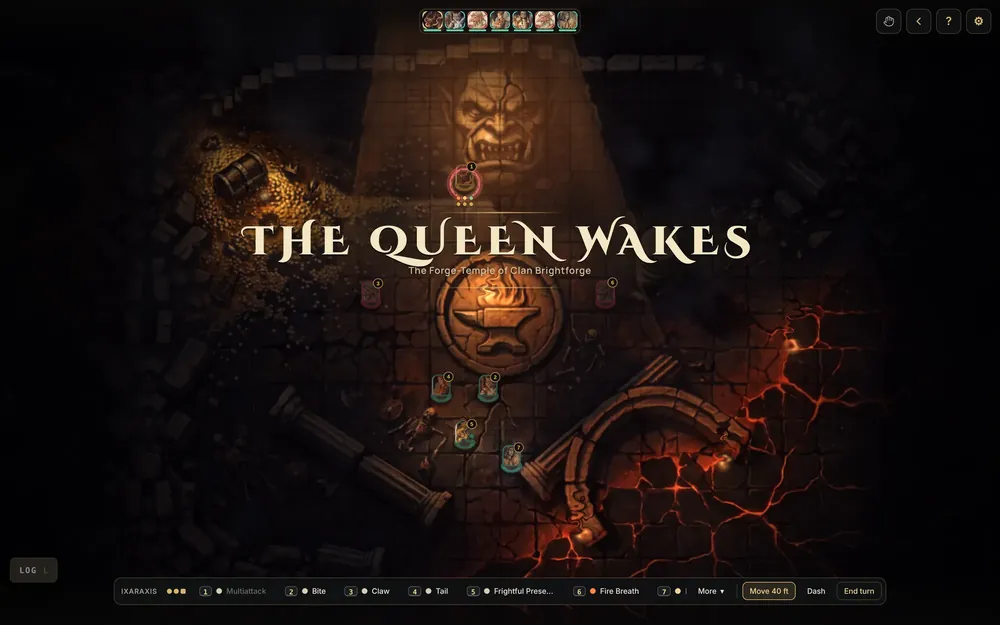
On the living board the fight fills the screen. The turn order runs across the top as a row of portraits. The creature whose turn it is has its actions in a bar along the bottom: numbered attacks and spells (press 1 to 9), Move, Dash and End turn. Click a hero, then a square to walk there. Press ? for every key, and Shift+C to hide everything but the board.
The gear button opens a drawer with the rest:
- Encounter. What the players see (the map or the scene), Add combatants, Call for a save, Undo, Rewind turn, the Combat log and End combat.
- Scene and time. Time of day on your screen, the fog brush and Re-fog.
- Weather. Rain, embers, dust or snow, and how heavy, on every screen at the table.
End combat closes the fight. How rolls work during a fight is on Dice and rolls.
What your players see
Players use their phone or laptop in a browser. Nothing to install. Their screen has tabs for the Scene (whatever you are showing, with your read-aloud as a caption), You (their sheet), Spells, Bag and the Table (who is here, the feed, everyone’s rolls and the journal).
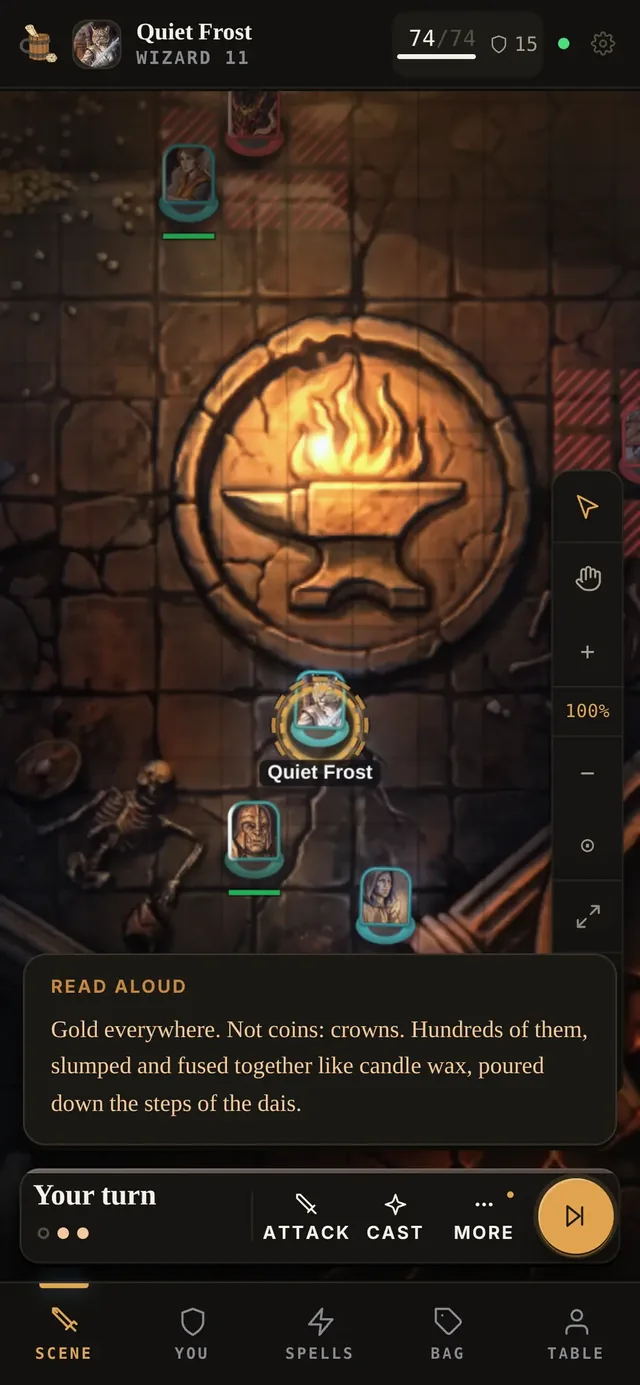
In a fight the board takes over their screen too, with their own action bar on their turn. Hidden creatures and anything you have kept for yourself stay off their screens.